Drupal Web Form: Contact, Webform Module and Form Options (2026)

 October 23, 2026
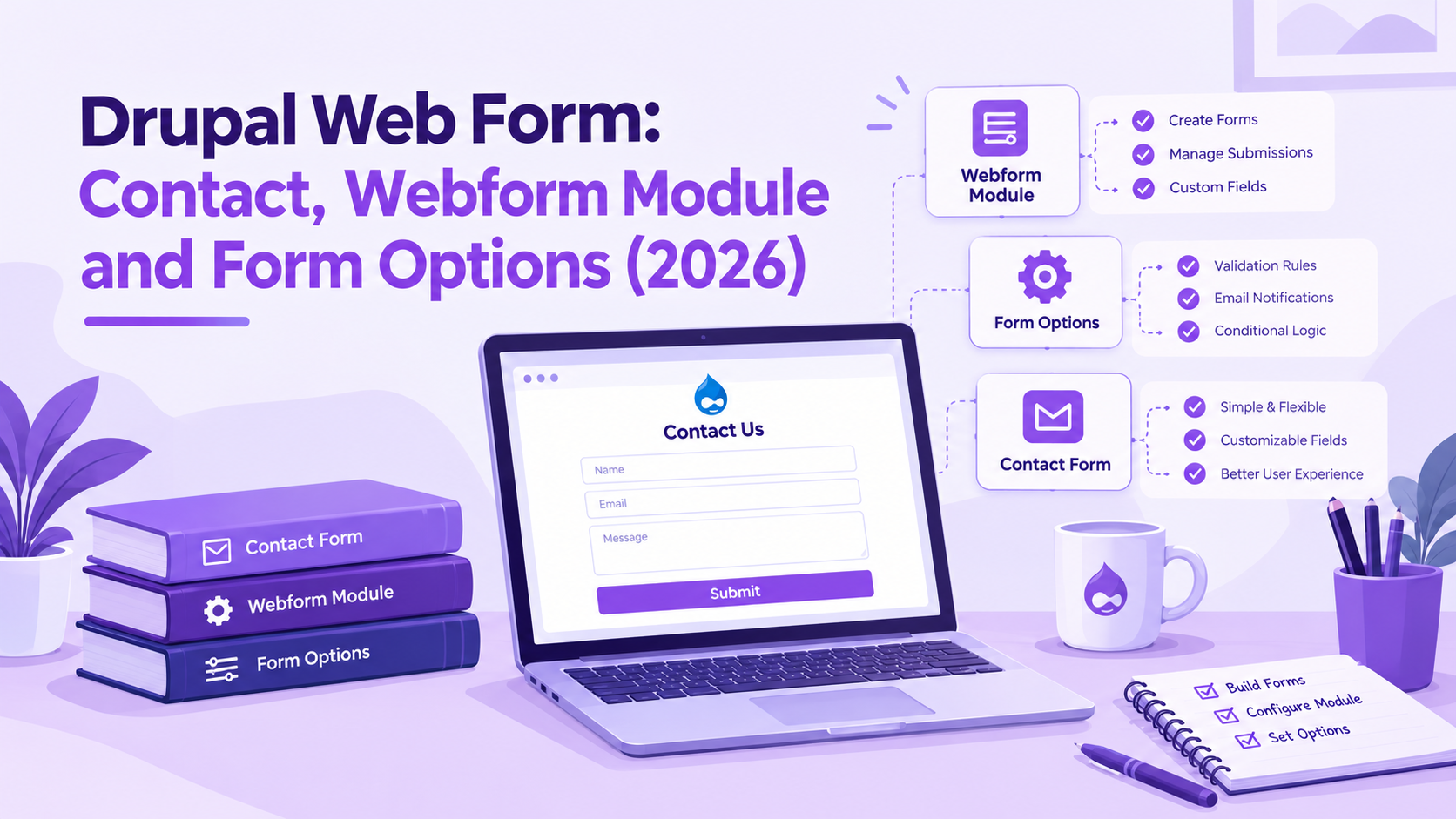
Building a web form in Drupal is a choice between three approaches, and the right one depends on what the form needs to do. The Contact module handles simple site contact forms quickly with no extra installation. The Webform module handles everything from basic contact fields to complex multi-step applications with conditional logic, submission management and third-party integrations. The Form API is for developers who need full control and are building forms in PHP.
This guide explains how each approach works, when to use each one, and what to watch for when building web forms on Drupal 10 and 11.
1. Drupal's Three Web Form Approaches
Drupal does not have a single built-in form builder. Core provides the framework; the tool you choose depends on the complexity of the form and who will maintain it.
Contact module (Drupal core)
The Contact module ships with Drupal core. It provides a basic site-wide contact form at /contact, email notification to a configurable address, and a simple category system for routing messages to different recipients. It stores nothing in the database by default — submissions go by email and are not saved. It requires no additional installation beyond enabling the module under Extend.
Webform module (contributed)
The Webform module is a contributed module installed via Composer. It provides a visual form builder with over 40 field types, conditional logic, multi-step forms, submission storage, export, email handlers and integrations with CRM and marketing platforms. Over one million Drupal sites use it. Webform 6.3.0, released in 2026, is the first stable version with full Drupal 11 support.
Form API (developer approach)
The Form API is Drupal's PHP-level form system. Every form in Drupal — including the Contact module form and the Webform module's output — is built on it internally. Developers use the Form API directly when a form needs custom validation, custom submission handlers, integration with specific services, or a structure that no admin interface can configure. The Form API requires PHP code in a custom module.
2. Setting Up the Contact Module for a Simple Web Form
The Contact module is the fastest route to a working web form in Drupal. It is part of core and only needs to be enabled.
Setup:
- Go to Extend (/admin/modules) and enable the Contact module
- Go to Structure > Contact forms (/admin/structure/contact) to manage forms
- The default "Website feedback" form is already configured. Click Edit to change the recipients, the auto-reply message and the message that appears after submission
- Add more contact forms if different sections of the site need separate forms with different recipients
- The default form is available at /contact. Link to it from your navigation or footer
By default, the Contact module sends form submissions by email and shows a confirmation message. Submissions are not stored in the database. If you need a record of every submission, install the Contact Storage contributed module, which adds database storage to Contact forms without replacing the module.
The Contact module has limits. Fields cannot be customised beyond what the default form provides without custom code. There is no visual form builder, no conditional logic, no file uploads and no export. For anything beyond a simple name-email-message form, the Webform module is the right tool.
3. Installing and Configuring the Webform Module
The Webform module is the standard choice for any web form that needs more than a basic contact form. It installs via Composer and gives a complete form management system.
Installation:
- Run composer require drupal/webform in your project root
- Go to Extend (/admin/modules) and enable Webform and Webform UI
- Enable Webform Node if forms need standalone pages at their own URLs
- Run drush updb after enabling to apply any database schema updates
After installation, web forms are managed at Structure > Webforms. Each form has its own admin area covering the form builder, settings, email handlers and submission results.
Drupal CMS and the Webform module
Drupal CMS 2.0, released in January 2026, includes the contact form as part of its Forms recommended add-on. The contact form in Drupal CMS is built on the Webform module — it lives at /contact, uses CAPTCHA and a honeypot field for spam protection, stores submissions in the database, and can be extended with conditional fields, autoresponder emails and CRM integrations through the same Webform admin interface.
4. Building a Web Form with the Webform Module
The Webform module's form builder covers the most common web form requirements through its admin interface, without writing code.
Adding fields:
- Go to Structure > Webforms and click Add Webform to create a new form
- In the Build tab, click Add Element to open the field library
- Text, email, phone, number, date, textarea, select, checkboxes, radio buttons, file upload — over 40 element types are available
- Each element is configured with a label, description, validation rules, placeholder text and default value
- Elements can be grouped with Fieldset or Section elements, and markup elements let you add instructional text between fields
Conditional logic
Conditional logic is set per element under its Conditions tab. Rules determine whether an element is visible, required, hidden or disabled based on the value of another element. A "Company name" field that only appears when the visitor selects "Business inquiry" in a type selector — no JavaScript needed, it works through the admin form.
Multi-step forms
Add a Wizard Page element to create a page break. Fields before the page break appear on step one, fields after on step two. Each step validates before the user can advance. A progress indicator shows which step the user is on and how many remain.
5. Web Form Submissions: Storage, Email and Export
Every Webform submission is stored in the Drupal database. The submissions view at Structure > Webforms > [Form] > Results shows all submissions with their values, date and submitting user.
Email notifications
Email handlers are configured under Settings > Emails. Multiple handlers can be added to one form — a notification to the site admin and a confirmation to the person who submitted. Each handler specifies the recipient address (a fixed address or a value from a form field), the subject line, the body content and which fields to include.
Exporting submissions
Submissions export to CSV or XLSX from the Results tab. Set a date range, choose which fields to include, and download. For large datasets the export runs as a batch process.
Spam protection
The Webform module integrates with CAPTCHA and the Honeypot module. Honeypot adds a hidden field to the form that only bots fill in — when that field contains a value, the submission is rejected silently. CAPTCHA adds a challenge the user must pass before submitting. Both can be enabled per form in the form settings.
6. Embedding a Web Form in Drupal
Once a form is built, there are three ways to place it on a page.
Webform block
Every Webform is automatically available as a block. Go to Structure > Block Layout, find the region where the form should appear, and add the Webform block. Choose which form to display. Set visibility rules if the form should only appear on specific pages. This is the fastest way to embed a contact form in a sidebar, footer or any other block region.
Webform Node
With Webform Node enabled, a Webform field can be added to any content type. Editors then attach a form to individual nodes. A service page with a quote request form, an event page with a registration form — each node uses a different form configured in that node's edit screen.
Embed token
Paste [webform:machine_name] into any body field that supports token rendering and the form appears inline in that content. This works without block configuration and suits cases where the form belongs inside the body of a page, not in a sidebar or region.
7. When to Use the Form API Instead of the Webform Module
The Webform module handles most web form requirements through its admin interface. The Form API is the right choice for specific situations where admin-level configuration is not enough.
Use the Form API when:
- The form needs custom validation logic that cannot be expressed through Webform's conditions — for example, validating a field value against an external API or a Drupal database query
- The form submission must trigger a complex sequence of operations: creating or updating a node, updating a user account, calling a webhook, processing a payment — all as a single atomic transaction
- The form is part of a module's own functionality rather than site content — admin settings forms, module configuration forms, search interfaces
- The form structure is determined dynamically at runtime based on configuration or user state that cannot be pre-defined in the Webform admin
A Form API form is defined in PHP as a class implementing FormInterface or extending FormBase. The form() method returns a render array defining the elements. validate() runs validation. submitForm() handles the submission. The form is registered with a route and rendered at a URL.
The Form API and the Webform module are not mutually exclusive. Many Drupal sites use both: Webform for editorial forms managed through the admin, and Form API for developer-built functional forms. The practical test is maintenance — if someone without PHP skills needs to update the form fields or settings, Webform is the right choice. If the form logic needs to live in code with version control, the Form API is the right choice.
Common Questions — Answered Directly
What is the difference between Contact module and Webform module in Drupal?
The Contact module is a core Drupal module that provides a simple site contact form with email notification. It cannot store submissions in the database, has no visual field builder and offers no conditional logic. The Webform module is a contributed module with a full form builder, submission storage, conditional logic, multi-step forms and integrations. For anything beyond a basic contact form, the Webform module is the right choice.
How do I add a form to a Drupal page?
With the Webform module installed, go to Structure > Webforms, create or select a form, then embed it using the Webform block in Structure > Block Layout, by adding a Webform field to a content type, or by pasting the embed token [webform:machine_name] into a body field. The block approach is the fastest for placing a form in a site region; the embed token works best for inline forms inside page content.
Does Drupal store form submissions?
The Webform module stores every submission in the Drupal database by default. They are viewable, exportable and manageable from the form's Results tab in the admin. The Contact module does not store submissions by default — it sends them by email only. The Contact Storage contributed module adds database storage to Contact forms if needed.
How do I protect a Drupal web form from spam?
The Webform module integrates with the Honeypot module (a hidden field bots fill in, which flags and rejects the submission) and with CAPTCHA (a challenge the user must pass). Both can be enabled per form in the Webform settings. Honeypot is generally lower friction for real users and recommended as a first layer of protection.
Does the Webform module work with Drupal 11?
Yes. Webform 6.3.0 is the first stable release with full Drupal 11 support, released in 2026. If you are running an older Webform version on Drupal 10 and planning to upgrade to Drupal 11, update the Webform module to 6.3.0 or later before migrating. Drupal 10 reaches end of life on December 9, 2026.
Can I build a multi-step form in Drupal without coding?
Yes. The Webform module handles multi-step forms through Wizard pages — add a Wizard Page element to the form where each step should break. Fields before the break appear on step one, fields after on step two. Each step validates independently, and a progress indicator shows the user how many steps remain. No JavaScript or PHP code is needed.
Action Checklist
- Decide which approach fits the form — Contact module for simple contact, Webform module for anything that needs field customisation, submissions or integrations
- Install the Webform module via composer require drupal/webform and enable Webform and Webform UI
- Enable Honeypot and configure it in Webform settings for spam protection on all public-facing forms
- Set up at least one email handler per form so submission notifications reach the right address
- Test conditional logic and multi-step behaviour on a staging environment before going live
- Check your Drupal version — Drupal 10 reaches end of life December 9, 2026
- Run composer outdated drupal/webform regularly and apply security releases immediately
Get a free Drupal audit → drupalify.com/free-audit

Dixit Patel
Web Developer & BloggerI write about web development, programming tips, and Drupal Commerce solutions. Follow me for tech tutorials and updates.





Struggling with
Let Us Audit Your Website for Free & Share Actionable Fixes