Drupal Layout: Layout Builder, Sections and Page Design (2026)
 October 23, 2026
Drupal's layout system is not a single tool — it is a set of overlapping systems that each handle a different level of the page structure. The theme defines the outer frame. Block layout populates the global regions. Layout Builder handles the per-page canvas. Understanding which layer does what is what separates Drupal sites that are easy to manage from ones that become a tangle of workarounds.
This guide covers how Drupal layout works at each level, how Layout Builder sections and columns work, the difference between Layout Defaults and Layout Overrides, how Single Directory Components fit in, and when to reach for each tool on Drupal 10 and 11.
1. Drupal's Layout System: Three Layers Working Together
Drupal handles layout at three distinct levels, and each one has a different job.
The theme layer
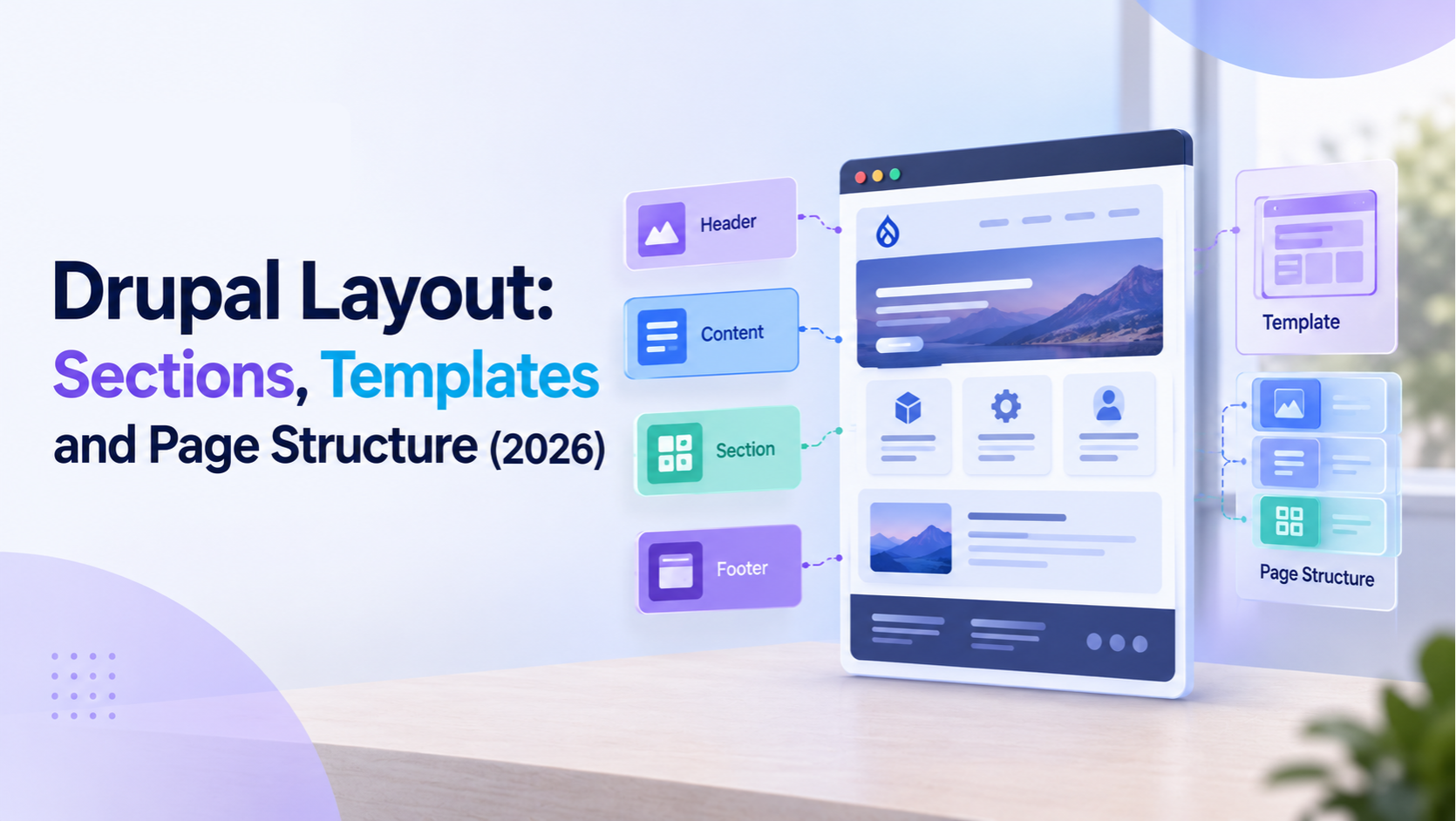
The theme defines the page skeleton — the overall HTML structure, the number and position of regions, the base CSS. Regions are named slots declared in the theme's .info.yml file and output in the page.html.twig template. This is the outermost layer. Developers build or configure it; editors do not touch it.
Block layout
Block layout populates the theme's regions with blocks. Navigation menus, search bars, language switchers, footer content — these are placed globally through Structure > Block Layout in the Drupal admin. Visibility rules control which pages and which user roles see each block. Block layout is site-wide by default; it manages the consistent frame around the content.
Layout Builder
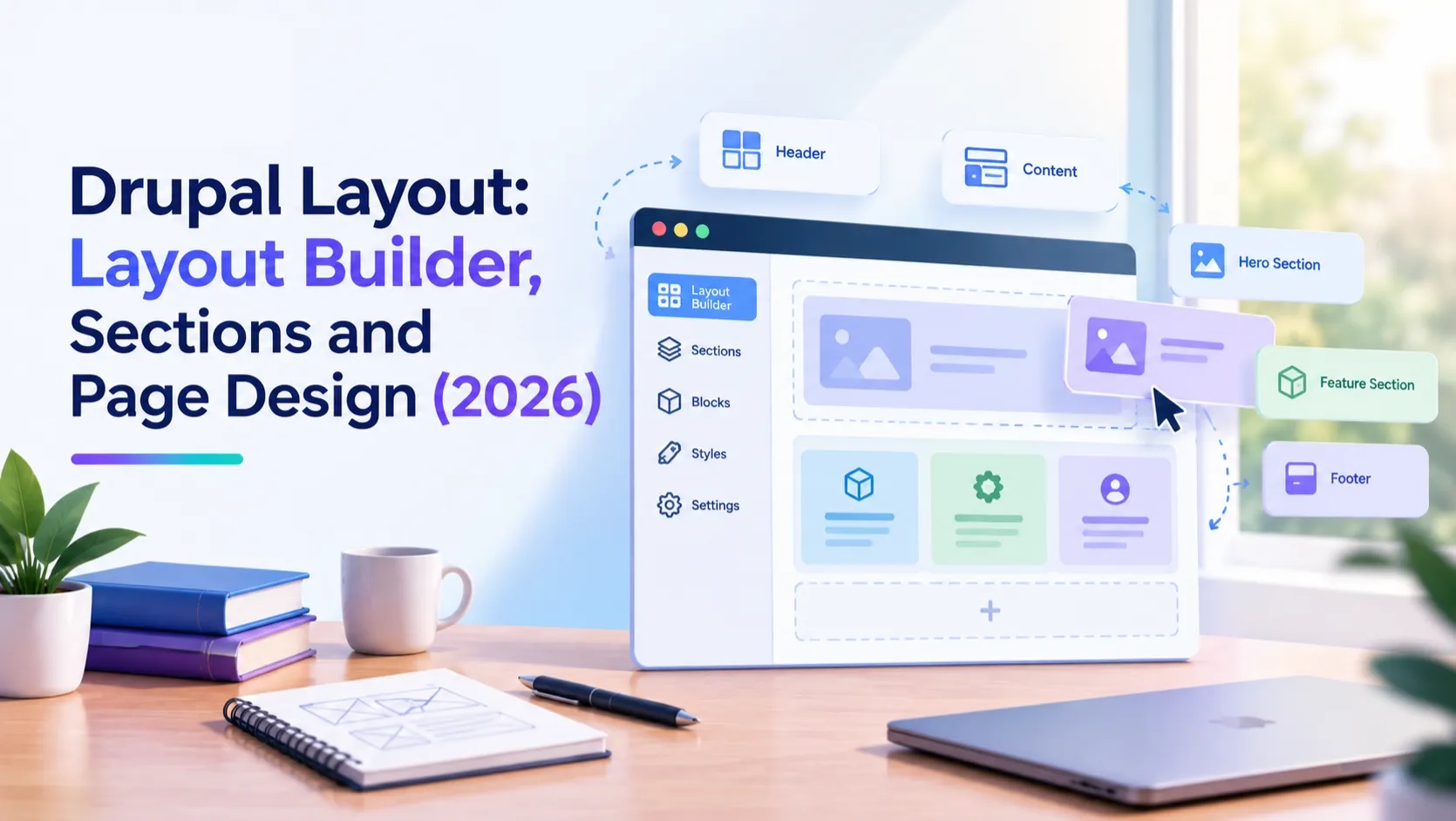
Layout Builder works inside the content area. It lets site builders and editors construct the interior layout of individual pages — adding sections, choosing column configurations, placing blocks within those sections — without touching the theme or block layout. A homepage, a landing page and a product page can each have a completely different interior layout while sharing the same theme and the same block layout frame.
These three layers are not competing. On a well-built Drupal site, all three are active simultaneously. The theme handles the frame, block layout populates the frame, and Layout Builder handles what goes inside the main content region.
2. Layout Builder: Sections, Columns and the Visual Interface
Layout Builder is a core Drupal module, stable since Drupal 8.7 and fully supported in Drupal 10 and 11. It gives site builders and editors a visual drag-and-drop interface for building page layouts — without writing code.
The fundamental unit in Layout Builder is the section. A section is a horizontal row of the page with a defined column structure. Each section can use a different layout:
- One column — full-width content across the page
- Two columns — side-by-side content areas in configurable width ratios (50/50, 33/67, 25/75 and others)
- Three columns — three content areas side by side
- Four columns — four equal or custom-width columns
Within each section, blocks are placed in the available columns. Any block available in the Drupal system — core blocks, contributed module blocks, custom blocks, Views blocks — can be placed in a Layout Builder section. Blocks are configured per placement, with their own visibility settings and display options.
The Layout Builder interface loads as an overlay on the page being edited. A sidebar panel gives access to the block library and section settings. Sections can be added, removed and reordered by dragging. Within a section, blocks can be moved between columns by dragging.
One known limitation: when a Layout Builder page has many sections, dragging blocks between sections can become difficult. For very complex page builds, planning the section structure before adding content reduces this friction.
3. Layout Defaults: Templates for Content Types
Layout Builder has two distinct operating modes. Layout Defaults is the first — it controls the default layout template for an entire content type.
When Layout Builder is enabled for a content type, you can define a default layout that applies to every node of that type. If your Article content type should always have a two-column layout with the article body on the left and related content in the right sidebar, you define that once in Layout Defaults and it applies to every article node automatically.
How to enable and configure Layout Defaults:
- Go to Structure > Content Types > [Content Type] > Manage Display
- Find the Layout Builder section and check "Use Layout Builder"
- Save. A "Manage Layout" button appears — click it to open the Layout Builder interface for this content type's default layout
- Build the layout using sections and blocks. Field blocks — which render specific fields from the content type — are available in the block library here
- Save the layout. All existing and future nodes of this content type will use this layout by default
Layout Defaults is where you standardise the layout of a content type across the site. It replaces the field display configuration that used to live in the Manage Display tab — in Layout Builder mode, field placement is controlled visually in the layout rather than through the table-based Manage Display interface.
4. Layout Overrides: Per-Page Layout Control
Layout Overrides is the second operating mode — it gives editors the ability to customise the layout of individual nodes without changing the content type default.
When "Allow each content item to have its layout customized" is enabled for a content type, an editor can open any node of that type and override its layout independently. The node starts with the content type's Layout Default and the editor can add, remove or rearrange sections and blocks for that specific node only.
Enabling Layout Overrides:
- Go to Structure > Content Types > [Content Type] > Manage Display
- With Layout Builder enabled, check "Allow each content item to have its layout customized"
- Save. An "Edit layout" link now appears on individual nodes for users with the right permissions
The practical use case: a company has a Services content type with a standard two-column layout set in Layout Defaults. One service — a flagship offering — needs a custom full-width hero section at the top. The editor opens that specific node, clicks "Edit layout," adds a full-width section above the standard layout, places a custom block in it, and saves. Only that node is affected.
Layout Overrides adds editorial flexibility but it also adds maintenance complexity. If the content type's default layout changes later, nodes with overrides do not automatically update — their overridden layouts stay as they were. Teams need to decide whether editorial layout freedom is worth the trade-off in consistency.
5. Placing Blocks Inside Layout Builder
Blocks are the content units that fill Layout Builder sections. The block library available in Layout Builder includes every block available to the site — it is the same pool as block layout, plus field blocks specific to the content type being edited.
Field blocks are unique to Layout Builder. They represent individual fields from the content type — the Title field, the Body field, an Image field, a custom field — and they can be placed anywhere in the layout like any other block. This is how Layout Builder replaces the traditional Manage Display table: instead of setting field order and formatters in a table, you drag field blocks into the layout sections.
How to add a block to a Layout Builder layout:
- In the Layout Builder interface, click "Add block" in the column where the block should go
- The block library opens in a sidebar. Browse by category or search by name.
- Select the block. A configuration form opens for that block's title, display settings and any block-specific options.
- Save. The block appears in the section immediately in the Layout Builder preview.
Each block placement in Layout Builder has its own configuration. The same block type can be placed multiple times in different sections with different settings for each placement. A Views block showing related articles could appear in one column with a card display, and the same block could appear in a footer section with a compact list display.
Block caching in Layout Builder follows the same rules as block layout. Cache contexts and cache tags on the block plugin control how Drupal caches the output. Blocks displaying user-specific content need the "user" cache context. Blocks tied to a specific node need that node's cache tag. Incorrect cache configuration leads to stale content showing for the wrong users.
6. Single Directory Components and the Evolving Drupal Layout Ecosystem
Single Directory Components (SDC) became part of Drupal core in Drupal 10.3. They represent a shift in how Drupal approaches reusable UI — rather than scattering a component's Twig template, CSS and JavaScript across multiple directories, SDC packages everything needed to render a component into a single folder.
What SDC brings to Drupal layout:
- Components can be dropped into any Twig template, including Layout Builder section templates and page templates
- Asset loading is automatic — SDC generates a Drupal library from the component's CSS and JS, which loads only when the component is used
- YAML schemas on components allow core and contributed modules to generate configuration forms, pointing toward tighter integration with Layout Builder in future Drupal releases
In practice, SDC is still primarily a developer and themer tool. It makes building and maintaining the component library cleaner, but editors do not interact with SDC directly. The long-term direction is tighter integration with Layout Builder, where SDC components could be added to layouts the same way blocks are added today.
Display Builder: a newer approach
Display Builder is a contributed module, not part of core, that takes a different approach to visual layout management in Drupal. Beta 2 was released in February 2026. It adds support for standard Drupal Layout plugins, integrates with Single Directory Components as component slots, and introduces a layered panel system for layout configuration.
Display Builder is experimental. It is not a replacement for Layout Builder on production sites in 2026, but it signals where the Drupal community is exploring for the next generation of layout tooling. Teams evaluating Drupal for new projects should watch it alongside Layout Builder.
7. Layout Builder, Block Layout or Paragraphs: Choosing the Right Tool
Three tools handle layout and content structure in Drupal: Layout Builder, block layout and the Paragraphs module. They overlap at the edges, which is why the choice is not always obvious.
Block layout
Use block layout for site-wide elements that appear consistently across pages — navigation, header, footer, language switcher, search bar. Block layout is the right tool when the content belongs in a theme region, not in the page body. It is not the right tool for page-specific layouts.
Layout Builder
Use Layout Builder when editors need visual control over the layout of individual pages or when a content type needs a structured, visually designed template. Landing pages, homepages, campaign pages and content types with complex display requirements all benefit from Layout Builder. The visual interface makes it accessible to editors without developer involvement for routine layout adjustments.
Paragraphs
Use Paragraphs when the requirement is flexible content components embedded inside a node — hero banners, testimonial sections, image-text pairs, accordions. Paragraphs are content, not layout. They are stored as part of the node and move with it. Layout Builder controls the structure of the page; Paragraphs control the structure of the content within the body field. Many Drupal teams use both together.
The common mistake is using Paragraphs to replicate what Layout Builder does, or using Layout Builder when Paragraphs would be simpler. The practical test: if the structure is part of the page design and editors need visual feedback as they build it, use Layout Builder. If the structure is part of the content and needs to be portable and consistent across many nodes, use Paragraphs.
Common Questions — Answered Directly
What is Drupal Layout Builder?
Layout Builder is a core Drupal module that gives editors a visual drag-and-drop interface for building page layouts. It works by adding sections to the page, choosing column configurations for each section, and placing blocks within those columns. It is stable since Drupal 8.7 and fully supported in Drupal 10 and 11.
What is the difference between Layout Defaults and Layout Overrides?
Layout Defaults sets a standard layout template for all nodes of a content type. Layout Overrides allows individual editors to customise the layout of a specific node independently from the default. Overrides are opt-in — they are enabled per content type and require explicit permission to use.
Can Layout Builder replace block layout?
No. Layout Builder and block layout serve different purposes. Block layout manages site-wide elements in theme regions — navigation, header, footer. Layout Builder manages the interior layout of individual pages. Both are active on most Drupal sites. Layout Builder does not replace block layout; it works alongside it.
What are Single Directory Components in Drupal?
Single Directory Components (SDC) are a theming approach introduced as a core feature in Drupal 10.3. They package a component's Twig template, CSS and JavaScript into a single directory, with automatic asset loading and YAML-based configuration schemas. They are primarily a developer tool for building maintainable component libraries.
Does Layout Builder work with Paragraphs?
Yes. Many Drupal teams use both. Layout Builder controls the section and column structure of the page. Paragraphs handle flexible content components inside individual fields. A Layout Builder section can contain a field block that renders a Paragraphs field, giving editors both structural layout control and flexible content components on the same page.
Is Layout Builder suitable for all Drupal sites?
Layout Builder is suitable for most content-managed Drupal sites, particularly those where editors need to control page layout without developer involvement. It adds some overhead — sites with many entity types and complex layouts may see increased page load time. For highly structured sites where layout rarely changes, a theme-controlled layout without Layout Builder is simpler to maintain.
Action Checklist
- Enable Layout Builder for content types that need flexible layout control under Structure > Content Types > Manage Display
- Define Layout Defaults for each content type before allowing Layout Overrides — give editors a starting template
- Enable Layout Overrides only for content types where per-page customisation is genuinely needed
- Audit which elements belong in block layout (site-wide) and which belong in Layout Builder (per-page)
- If your site is on Drupal 10.3 or later, explore Single Directory Components for the component library
- Check your Drupal version — Drupal 10 reaches end of life December 9, 2026
- Review block cache contexts and cache tags on any block showing dynamic or user-specific content in Layout Builder
Get a free Drupal audit → drupalify.com/free-audit

Dixit Patel
Web Developer & BloggerI write about web development, programming tips, and Drupal Commerce solutions. Follow me for tech tutorials and updates.


Struggling with
Let Us Audit Your Website for Free & Share Actionable Fixes