Drupal Block: How Blocks Work and How to Place Them (2026)
 October 23, 2026
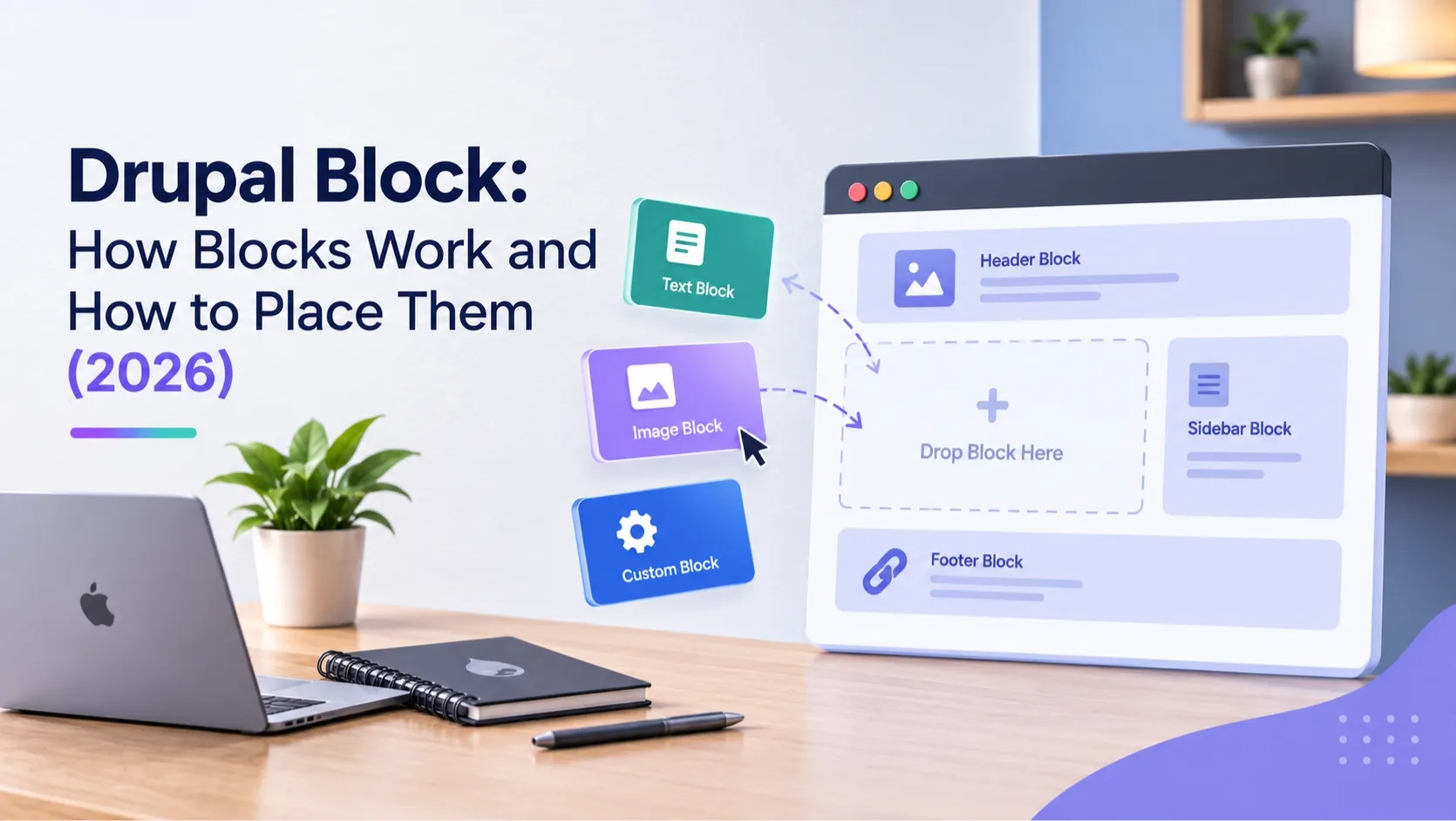
Blocks are one of the most fundamental building pieces in Drupal. Every navigation menu, search bar, login form, sidebar widget and custom HTML section on a Drupal site is a block. Understanding how blocks work — and how block layout controls where they appear — is essential for anyone building or managing a Drupal site.
This guide covers what Drupal blocks are, how block layout and regions work, how to configure visibility, how to create custom blocks through the admin, and when to use blocks versus Layout Builder on Drupal 10 and 11.
1. What a Drupal Block Is
A block in Drupal is a container for content or functionality that can be placed in a defined region of a page. Blocks are independent of the main content area — they sit in the surrounding layout, in areas like the header, footer, sidebar or any custom region the active theme defines.
Every block has two parts:
- Its content — the text, form, list, menu or other output the block produces
- Its placement configuration — which region it sits in, which pages it appears on, and which users can see it
These two parts are managed separately in Drupal. A block's content is defined when the block is created. Its placement is configured in block layout, and the same block can be placed in multiple regions at the same time with different visibility rules for each placement.
Blocks are not nodes. A node is a piece of content that lives at its own URL. A block is a layout element that appears alongside content. The two serve different purposes and are stored differently in the database.
2. Where Drupal Blocks Come From
Blocks in Drupal come from three sources. Understanding the source of a block tells you how to manage and update it.
Core blocks
Drupal core generates blocks automatically from its own systems. The main navigation block, the user login block, the search form block, the breadcrumb block, the page title block and the main content block are all core-generated. They appear in block layout automatically once the relevant core modules are enabled.
Contributed module blocks
Most contributed modules that provide visible output create one or more blocks. The webform module creates a block for each published form. The Views module creates a block for any view configured with a block display. The Language Switcher module creates a language selection block. Once a contributed module is installed and enabled, its blocks appear in block layout and can be placed like any other block.
Custom blocks
Custom blocks are created manually through the Drupal admin. They hold content that a site builder or editor writes — a promotional banner, a contact detail section, a custom HTML widget, a call to action. Custom blocks have their own content type called Block Content, and they can use any fields available in Drupal including text, images and links.
Custom blocks are managed at Structure > Block Layout > Add Custom Block, or at Structure > Block Content for the full content management view.
3. Drupal Block Layout: Regions and Placement
Block layout is the admin interface that controls where blocks appear on the site. Every Drupal theme defines a set of named regions — areas of the page template where blocks can be placed. Common region names are Header, Primary Navigation, Highlighted, Content, Sidebar First, Sidebar Second and Footer, but each theme defines its own set.
To access block layout, go to Structure > Block Layout in the Drupal admin. The page shows all regions defined by the active theme, with the blocks currently assigned to each region listed in order.
Placing a block:
- Click "Place block" next to the region where you want the block to appear
- Search for the block by name in the dialog that opens
- Select it and configure its title, visibility rules and any block-specific settings
- Save the block placement
Blocks within a region are ordered by weight — lighter blocks float to the top. You can drag and reorder them directly in the block layout interface. The order determines which block appears first within that region on the front end.
When you switch themes, block placements do not carry over automatically. The new theme may define different regions, and any blocks assigned to regions that no longer exist will be placed in a disabled state. You need to reassign them in block layout after switching themes.
4. Block Visibility: Controlling Where Each Block Appears
Each block placement in Drupal has its own visibility configuration, independent of the block's content. Visibility rules determine whether a block renders on a given page load. They do not hide or show the block with CSS — they prevent it from being included in the page response entirely.
Drupal block visibility has four built-in conditions:
Pages
Show the block on specific pages or exclude it from specific pages. You can list URL paths directly, use wildcards (node/* matches all node pages), or use the front page token <front>. The condition can be set to show only on the listed paths, or show everywhere except those paths.
Content types
Show or hide the block based on the content type of the node being viewed. A testimonial block that should only appear on service pages can be restricted to the Service content type without needing custom code.
Roles
Show a block only to specific user roles. An admin toolbar block shown only to administrators, a members-only content block visible only to authenticated users — both are handled through the role condition.
Language
On multilingual sites, blocks can be restricted to display only when the site is viewed in a specific language. This allows different header content or promotional blocks per language without duplicating block structure.
Contributed modules extend the visibility system further. The Context module, Block Visibility Groups module and Rules module each add conditions beyond what core provides — taxonomy terms, URL parameters, user fields, time-based conditions and more.
5. Creating and Managing Custom Blocks
Custom blocks are the blocks site builders create directly in the Drupal admin. Unlike blocks generated by modules, custom blocks are content — they are stored in the database and editable through the admin interface.
Creating a custom block:
- Go to Structure > Block Layout and click "Add custom block" in the top area, or go to Structure > Block Content > Add custom block
- Select a block type. Drupal ships with a Basic block type by default, which has a Body field. Developers can create additional block content types with custom fields.
- Write the block content — title, body, any additional fields — and save
- The block is now available to place in block layout. Go to Structure > Block Layout, click "Place block" in the target region, search for the block by its title and place it
Block content types work the same as node content types. A custom block type can have any fields available in Drupal — image fields, link fields, entity reference fields, text fields with different formatters. This makes custom blocks a flexible tool for structured, reusable content pieces that belong in layout regions rather than as standalone pages.
One custom block can be placed multiple times in different regions or on different page contexts. Each placement has its own visibility configuration, but they all reference the same block content. Editing the block content updates every placement simultaneously.
6. The Drupal Block Plugin System
Behind the admin interface, Drupal's block system is built on the plugin architecture. Every block in Drupal is a block plugin — a PHP class that implements the Block plugin interface and defines what output the block produces.
This matters for development work. When a contributed module creates a block, it does so by defining a block plugin class. The class declares the block's ID, default label and any configuration form for block-specific settings. Drupal discovers these classes automatically through annotations and makes them available in block layout.
Block plugins have two methods that matter most:
- build() — returns the render array that Drupal turns into HTML output for the block
- blockForm() and blockSubmit() — define any configuration form that appears when placing the block in block layout
For site builders, the plugin system is invisible — it is the plumbing behind the block layout interface. For developers building contributed or custom modules, understanding block plugins is the foundation for creating any block-based output in Drupal 10 and 11.
Drupal's block caching is also handled at the plugin level. Each block plugin declares its cache contexts (what varies the cache — user role, URL, language), cache tags (what content invalidates the cache — a specific node, a configuration object) and cache max age. Getting these right is essential for blocks that display dynamic or user-specific content without stale output.
7. Drupal Blocks vs Layout Builder: When to Use Which
Block layout and Layout Builder both control how content is arranged on a Drupal page, but they operate at different levels and solve different problems.
Block layout
Block layout manages the global site structure. Blocks placed here follow the rules you set — they appear in their assigned region on every page that meets the visibility conditions. This is the right tool for site-wide elements: the main navigation, the site logo, the search bar, the footer content, the language switcher.
Block layout is theme-level. The regions are defined by the theme and the blocks sit in those fixed zones. Changing the layout of a specific page is not what block layout is built for.
Layout Builder
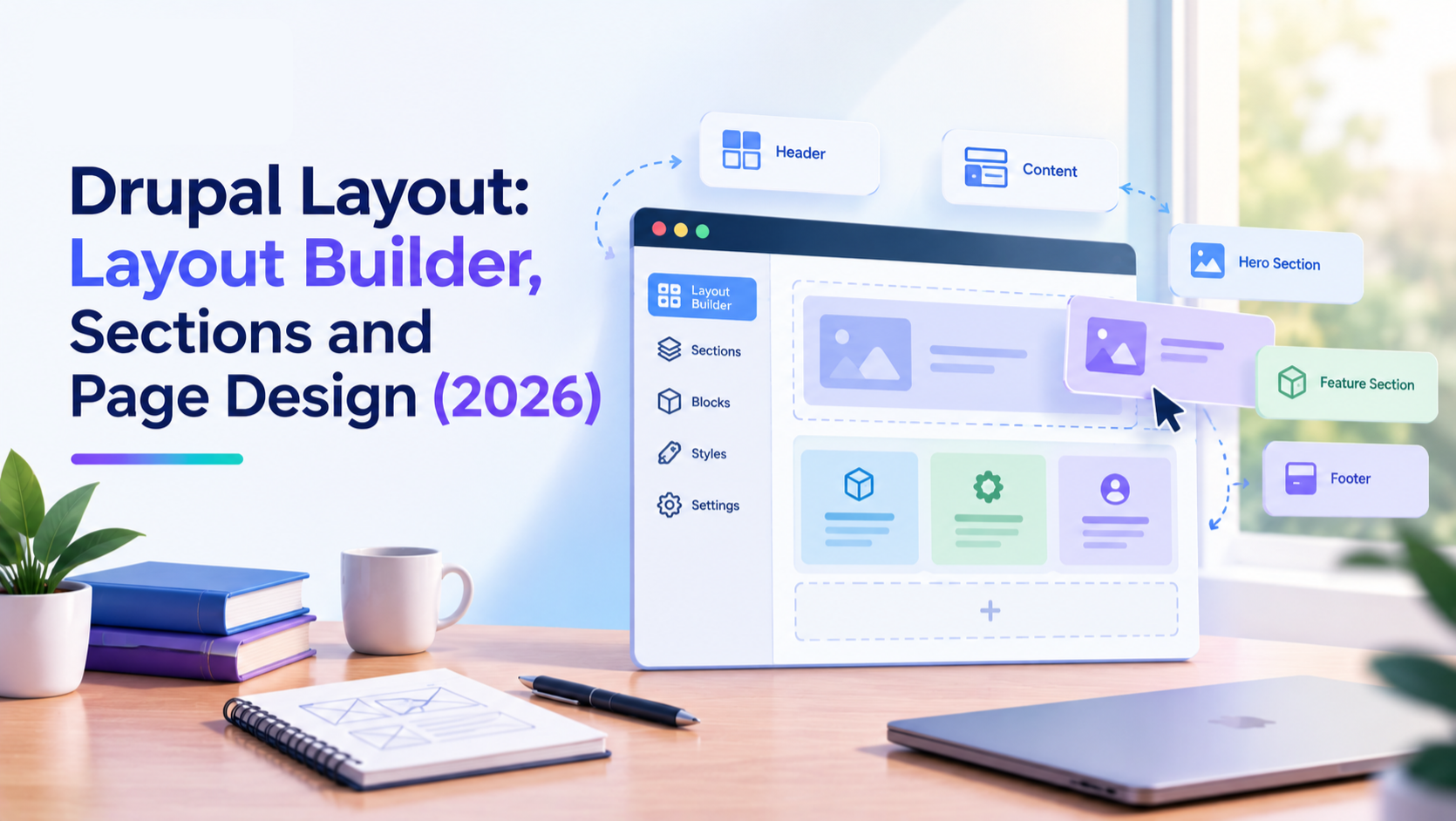
Layout Builder, a core module stable since Drupal 8.7, works at the page level. It lets editors build unique layouts for individual pages using a drag-and-drop visual interface. A homepage can have a full-width hero and a three-column feature section. A landing page can have a completely different structure. Both run on the same theme without block layout being involved.
Layout Builder places blocks inside sections it defines on the page canvas. These are the same blocks available in block layout — the block system is the shared foundation — but they are placed per page rather than globally.
The practical split:
- Navigation, header, footer, sidebar widgets that appear across many pages — block layout
- Page-specific hero sections, landing page layouts, content pages that each need a different structure — Layout Builder
- Both can be active simultaneously. Block layout handles the global frame, Layout Builder handles the per-page interior.
Common Questions — Answered Directly
What is a Drupal block?
A Drupal block is a unit of content or functionality placed in a region of the page layout. It is independent of the main content area. Navigation menus, login forms, search bars, promotional banners and custom HTML sections are all blocks in Drupal.
How do I add a block in Drupal?
Go to Structure > Block Layout in the Drupal admin. Find the region where you want the block to appear and click "Place block". Search for the block by name, configure its visibility settings, and save. The block appears on the front end in that region immediately.
Can I show a Drupal block on specific pages only?
Yes. Each block placement has its own visibility settings under the Pages tab. Enter the URL paths where the block should appear, or the paths where it should not. Use wildcards like node/* to match all pages of a certain type. The block can also be restricted by content type, user role and language.
What is the difference between a Drupal block and a node?
A node is a piece of content that lives at its own URL — a page, an article, a product. A block is a layout element placed in a region around the content. Nodes are the main content. Blocks are the surrounding structure. They are stored differently and managed through different parts of the admin.
How do I create a custom block in Drupal?
Go to Structure > Block Layout and click "Add custom block", or go to Structure > Block Content > Add custom block. Choose a block content type, fill in the content fields and save. Then go to block layout, click "Place block" in the target region, search for the block by title and place it with the visibility settings you need.
Do Drupal blocks work with Layout Builder?
Yes. Layout Builder places blocks inside page sections it manages. The blocks themselves come from the same system as block layout — contributed module blocks, custom blocks and core blocks are all available in both interfaces. Layout Builder and block layout can both be active on the same site.
Action Checklist
- Go to Structure > Block Layout and review which blocks are placed in which regions
- Check visibility settings on each block — confirm they are showing on the right pages and for the right roles
- Audit custom blocks at Structure > Block Content — remove any that are unused or outdated
- If blocks need to appear differently on specific pages, evaluate Layout Builder as a complement to block layout
- Check your Drupal version — Drupal 10 reaches end of life December 9, 2026
- After switching themes, reassign any blocks that were in regions the new theme does not define
- For blocks with dynamic content, verify cache contexts and cache tags are correctly set to avoid stale output
Get a free Drupal audit → drupalify.com/free-audit

Dixit Patel
Web Developer & BloggerI write about web development, programming tips, and Drupal Commerce solutions. Follow me for tech tutorials and updates.
Struggling with
Let Us Audit Your Website for Free & Share Actionable Fixes